> ## Documentation Index
> Fetch the complete documentation index at: https://docs.camber.so/llms.txt
> Use this file to discover all available pages before exploring further.
# Sandbox
> Learn how to test your Camber integration.
When testing your integration with Camber, you can use the sandbox environment. Here's how you do it:
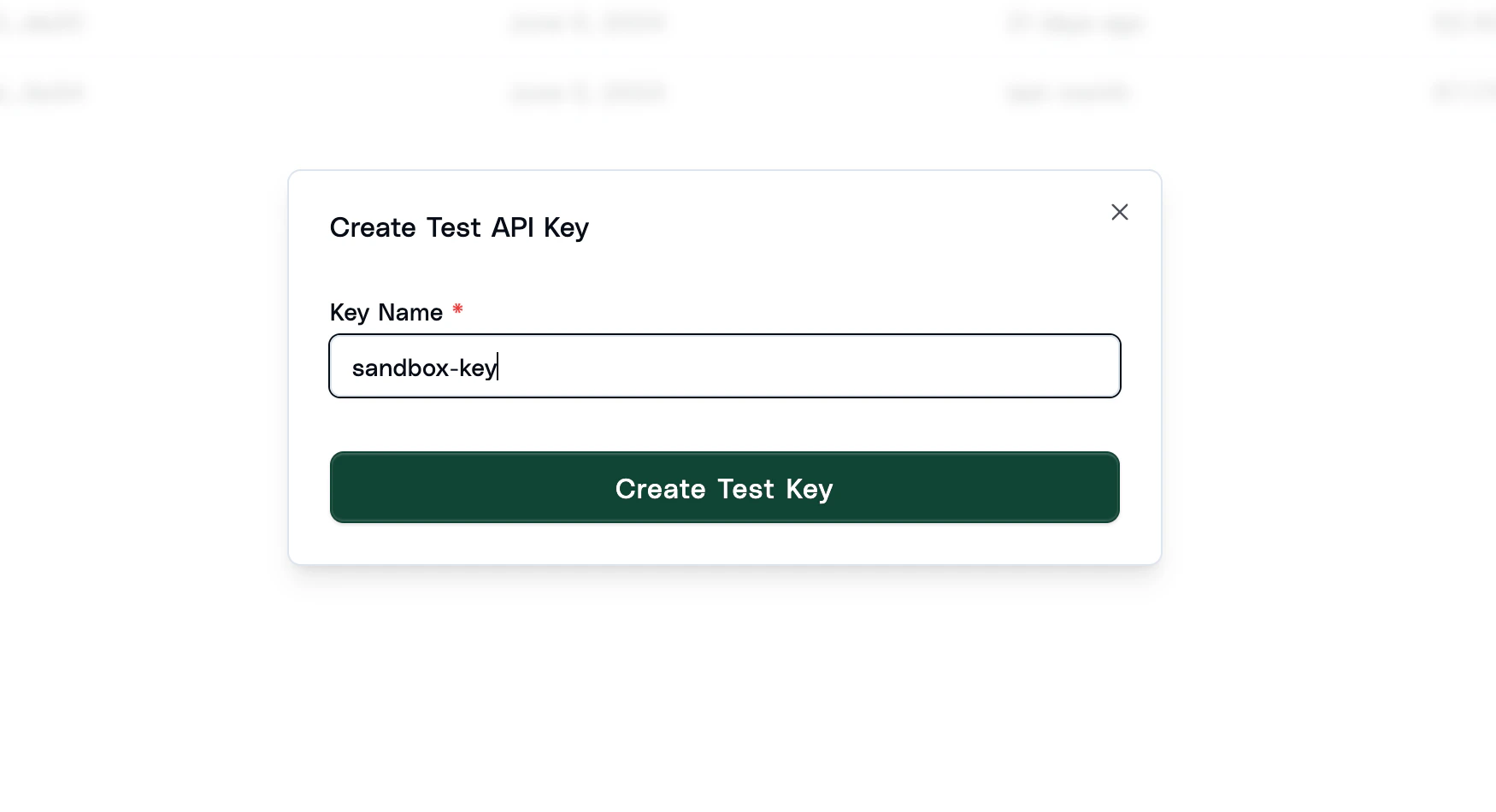
### Create a Test API Key
You can do this in the dashboard. To swap to test mode, you can click the toggle in the top right of the page.
 ### Change the Base URL
Simply change the base URL to the test server.
```
https://sandbox-api.camber.so/v1
```
If you try to use a test API key with the normal base URL or a live key with the test server, you will receive an error.
### Document Verifications
When to testing you verifications integration, you can can set the `test_response`
parameter in the request to specify the response you want to receive.
Currently, you can set the final `status` of the verification to `complete` or `failed`,
and the `decision` to `accepted`, `rejected` or `flagged`.
If you set nothing, Camber will return a random response. If you pass any rules,
Camber will attempt to return a response that matches the rules. If the decision is set to rejected or flagged,
Camber will generate an issue for the field that caused the decision.
### Change the Base URL
Simply change the base URL to the test server.
```
https://sandbox-api.camber.so/v1
```
If you try to use a test API key with the normal base URL or a live key with the test server, you will receive an error.
### Document Verifications
When to testing you verifications integration, you can can set the `test_response`
parameter in the request to specify the response you want to receive.
Currently, you can set the final `status` of the verification to `complete` or `failed`,
and the `decision` to `accepted`, `rejected` or `flagged`.
If you set nothing, Camber will return a random response. If you pass any rules,
Camber will attempt to return a response that matches the rules. If the decision is set to rejected or flagged,
Camber will generate an issue for the field that caused the decision.